
General settings
2 min read
General settings
Business name
Updating this field changes how your business name appears in the site switcher (top right).
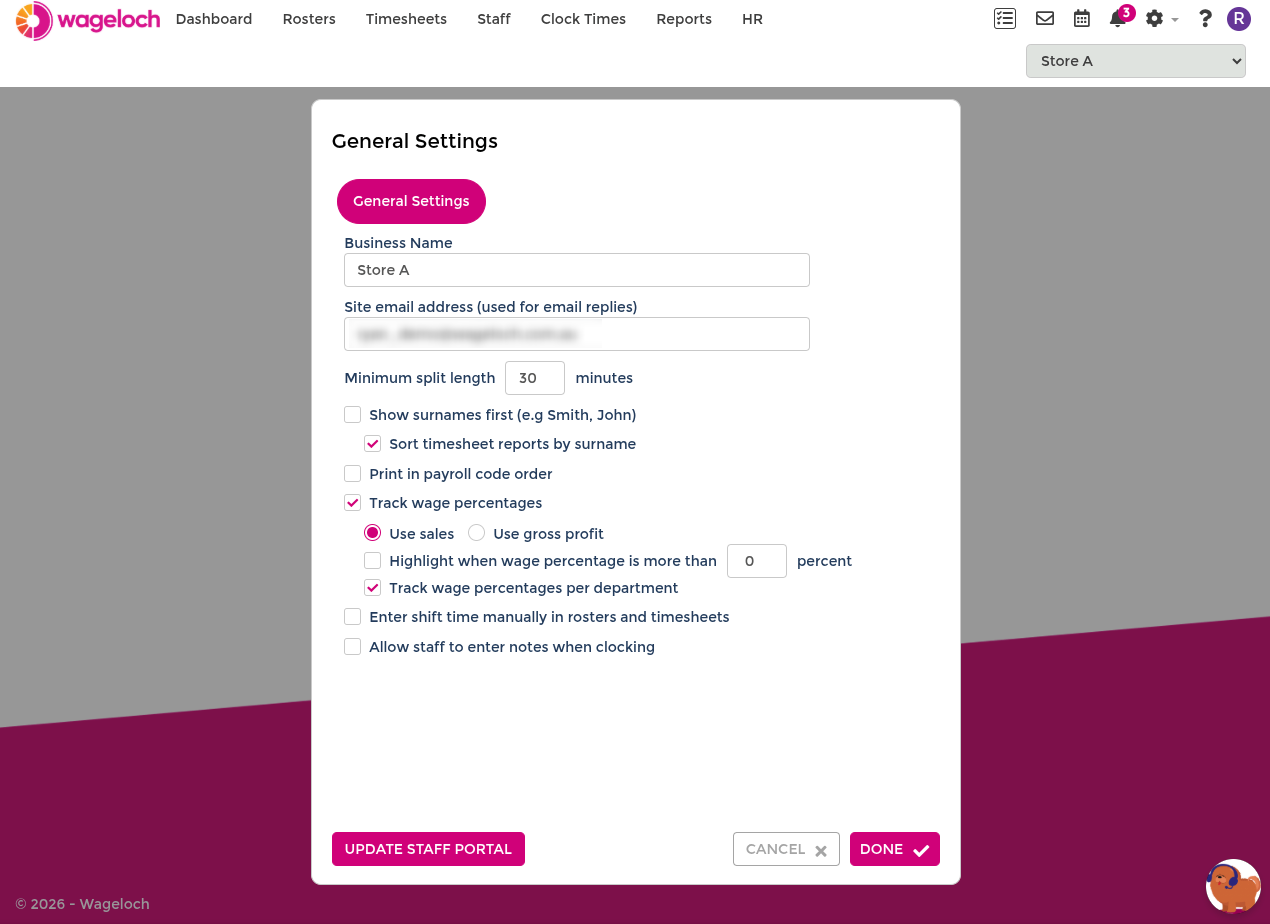
Site email address
Set a site email address so outbound messages from tools like the Message Centre and roster publishing have a clear reply contact.
Emails sent from Wageloch appear as "noreply@wageloch.com.au", but your site email is shown as the contact address in the message footer.
Minimum split length
Minimum split length prevents shifts shorter than the value you set.
The default is 30 minutes. You can reduce this to 15 minutes, but lower values increase the chance of accidental short shift entries in rosters and timesheets.
Display options
- Show Surnames First: Displays employee names as Surname, Firstname in rosters and staff lists.
- Also on Timesheets: Applies the same name order in timesheets.
- Print in payroll code order: Orders employees by payroll code in printed PDFs (where payroll codes are used).
- Enter shift time manually in rosters and timesheets: Enables manual entry so shift start and finish times can be typed directly.
Track wage percentages
Wageloch can track incoming Sales or Gross Profit so you can monitor sales or GP against outgoing wages.
When this setting is enabled, additional options become available:
- Use Sales or Use Gross Profit: Choose whether to use sales before overheads, or gross profit after overheads.
- Highlight when wage percentage is more than ___ percent: When viewing Sales in your rosters or reports, highlight cells when they exceed a specified value.
- Track wage percentages per department: Splits sales and wage tracking by Departments in rosters, timesheets, and reports.
TIP
Check out Sales vs Wages for setup steps and useful reporting examples.
Mobile clocking and mobile app
- Mobile clocking GPS proximity alerts: Unlocks Proximity Alerts so you can define locations by site, department, or role.
- Enable mobile clocking by default: Automatically enables Mobile App Clocking for newly added employees.
- Allow staff to enter notes when clocking: Lets employees add notes when they clock in or out through the mobile app.
- Allow staff to view their confirmed times on Portal/Mobile App: Lets employees view confirmed daily times after timesheets are finalised.