
Timesheets by department
2 min read
Timesheets by department
Department filtering lets managers focus on their teams when reviewing and finalising timesheets.
This is useful when:
- You have multiple departments with different managers.
- You want departmental accountability before payroll submission.
- You want cleaner summary checks by team.
Before you start
- Confirm department structure is set up. See Departments.
- Confirm manager permissions and restrictions are configured. See Security and User Permissions.
- If your environment requires a feature toggle for this mode, contact Helpdesk.
Finalise timesheets by department
- Open Timesheets from the top menu.
- Open the current pay period.
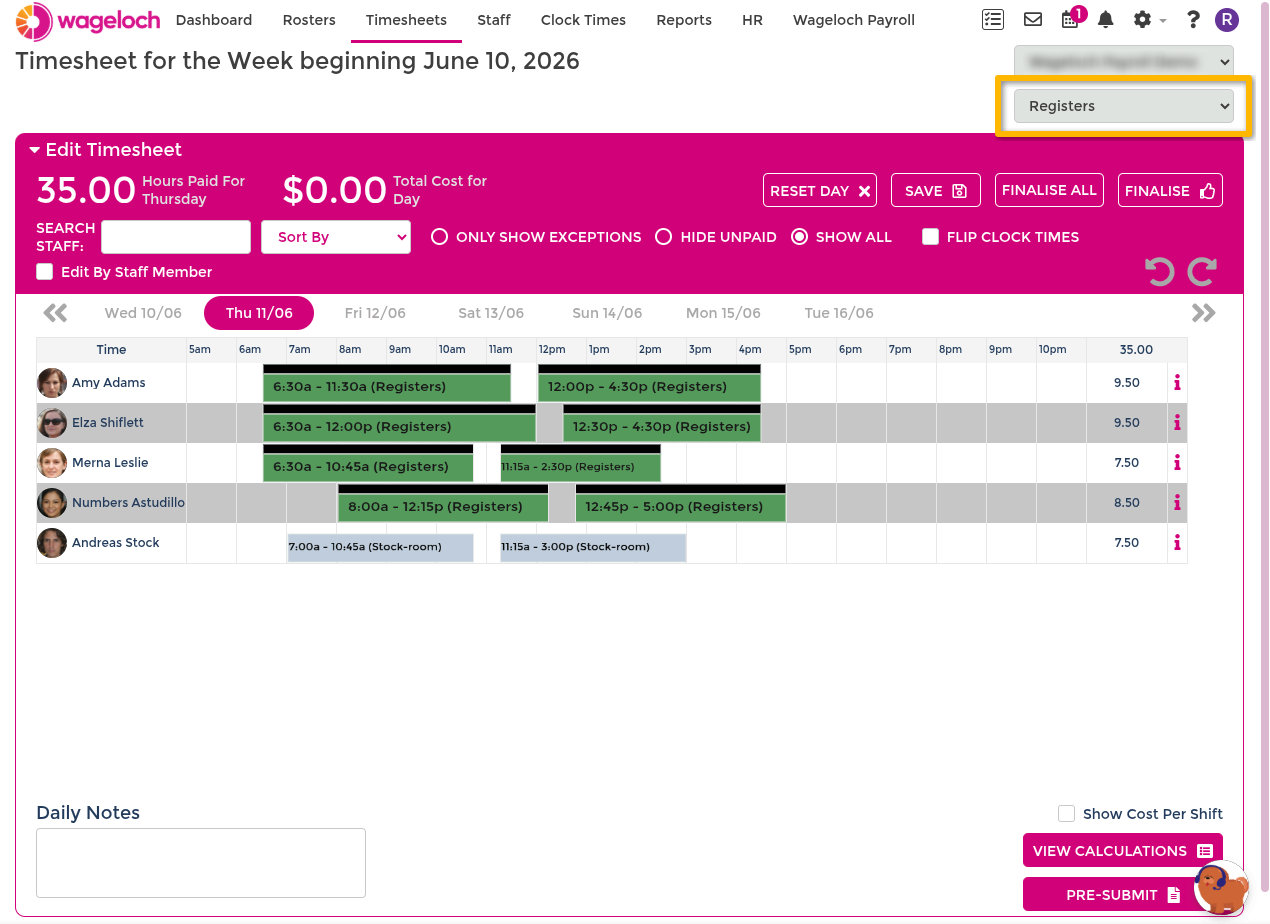
- Use the Department filter (top-right) to select a department.
- Review and finalise days for that department.
- Repeat for each required department.
Multiple departments in one view
If enabled in your settings, you can select more than one department to review combined results.
Use department filters in Pre-Submit
After daily finalisation, use Pre-Submit to review payroll totals by department.
- Open the current timesheet.
- Confirm all required days are finalised.
- Select Pre-Submit.
- Start with (ALL) to review full-period totals.
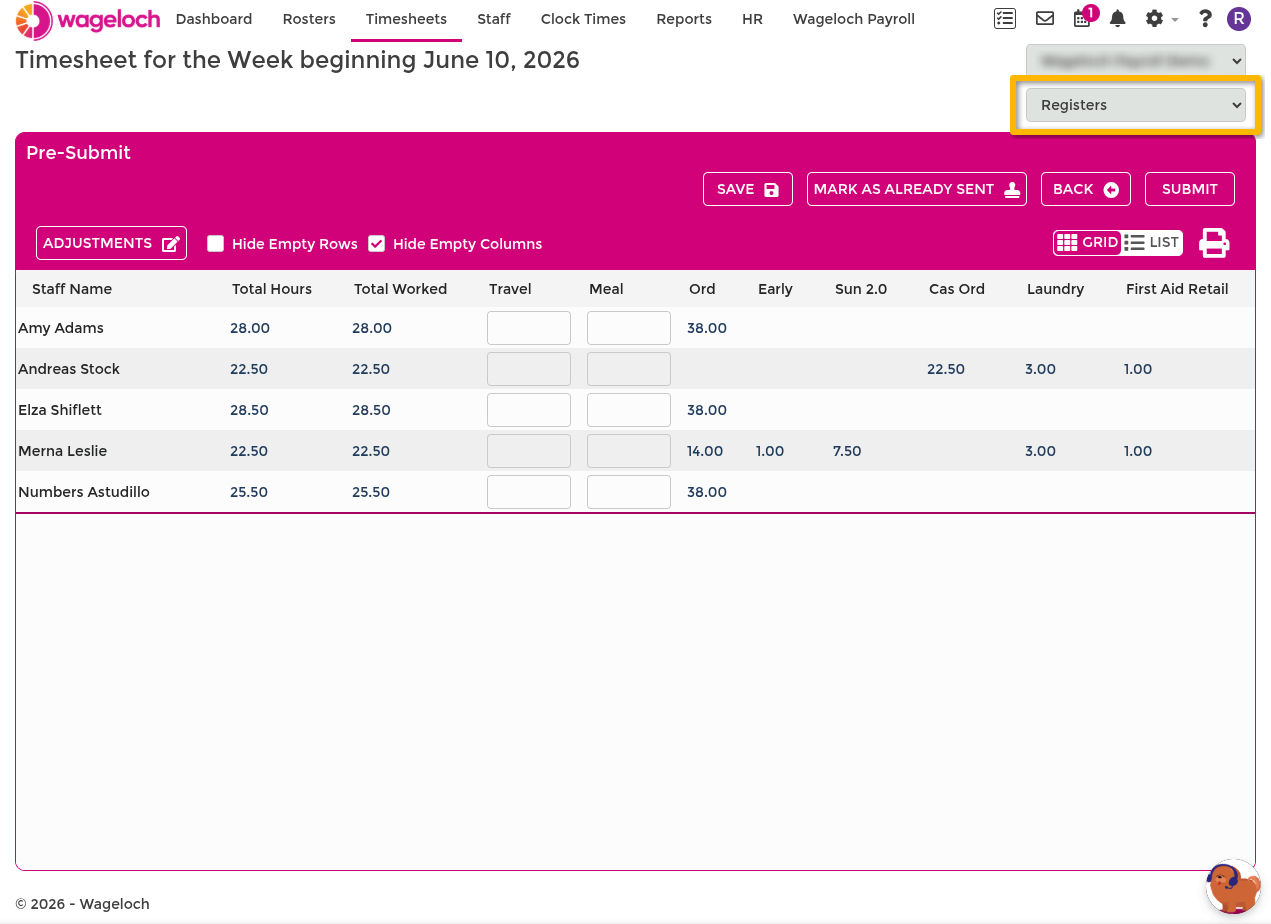
- Use the department selector (top-right) to switch to a single department.
- Review the selected summary before submission.
Reduce summary noise
Use Hide Empty Rows and Hide Empty Columns to simplify the summary and focus on payable values.
Practical review order
For cleaner payroll checks in larger teams, use this order:
- Finalise each department daily or every second day.
- Run Pre-Submit per department before final submission.
- Resolve any department-level issues first, then submit the full period.
For full day-level finalisation guidance, see Completing timesheets.