
Qualifications
3 min read
Qualifications
Use Qualifications to track staff credentials, renewal dates, and qualification-based rostering needs.
Before you start
- You need access to Settings in Wageloch.
- If renewal tracking is required, decide how many weeks before expiry notifications should be shown.
- If you use document-linked qualifications, confirm Wageloch HR is available for your site.
Create a qualification
- Sign in to Wageloch.
- Open Settings.
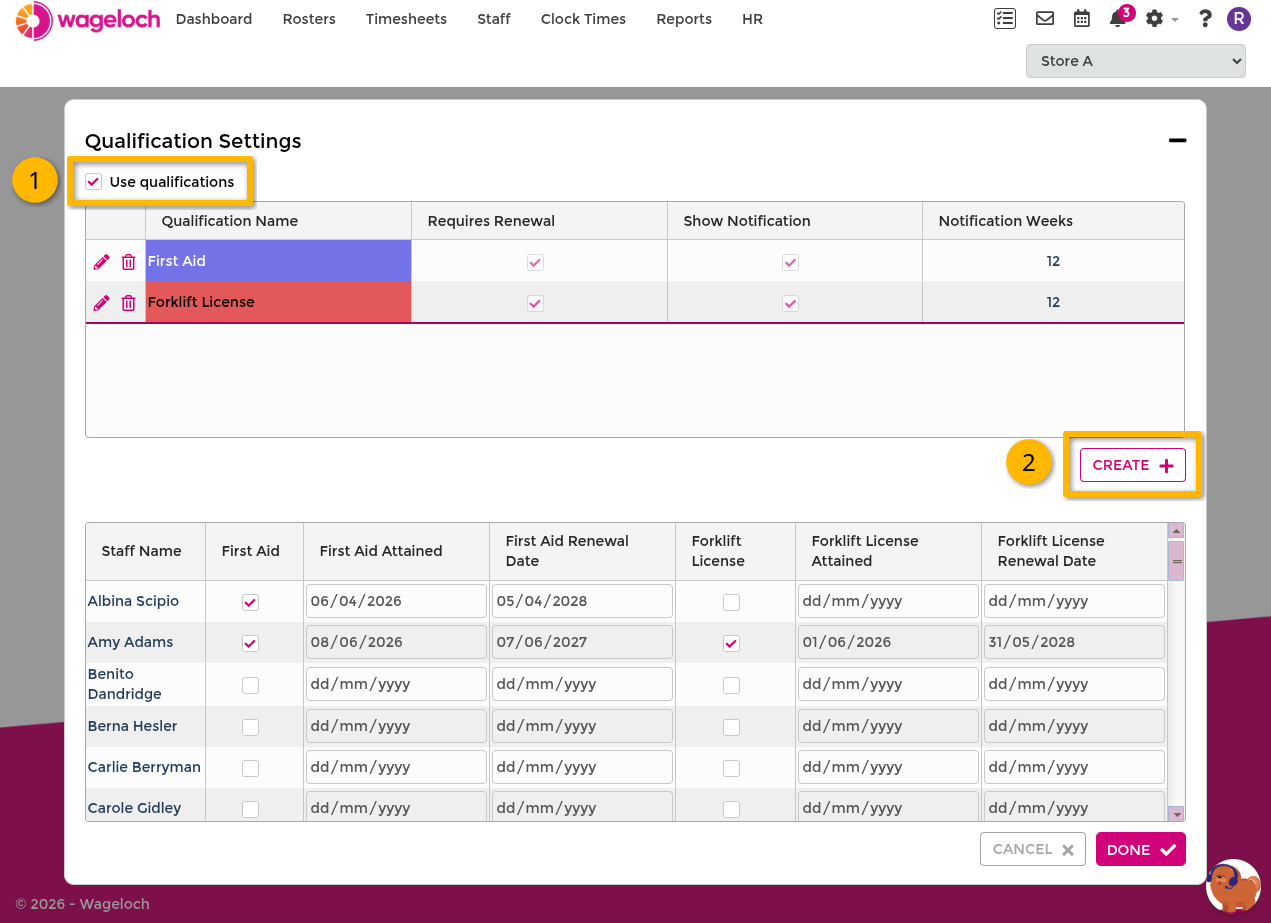
- Select Qualifications.
- Enable Use Qualifications.
- Click Create.
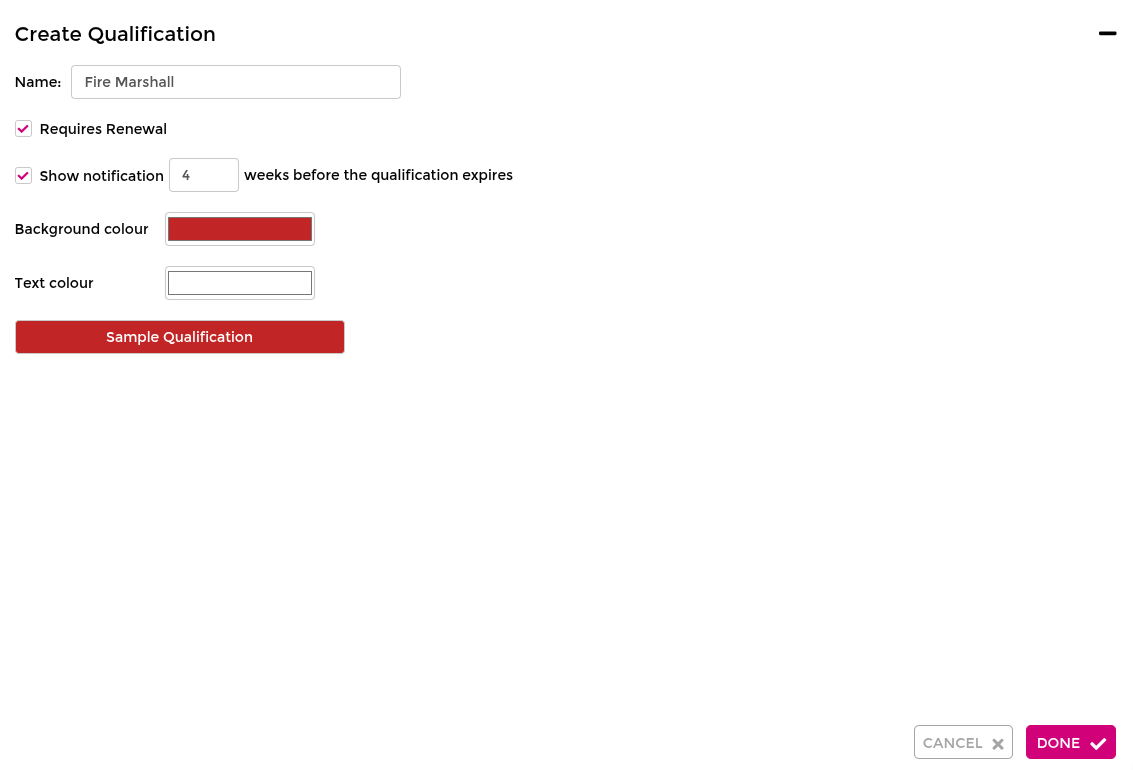
- Enter a qualification name (for example,
First Aid). - If needed, enable Requires Renewal.
- Set Show Notification __ weeks before qualification expires.
- Choose a colour.
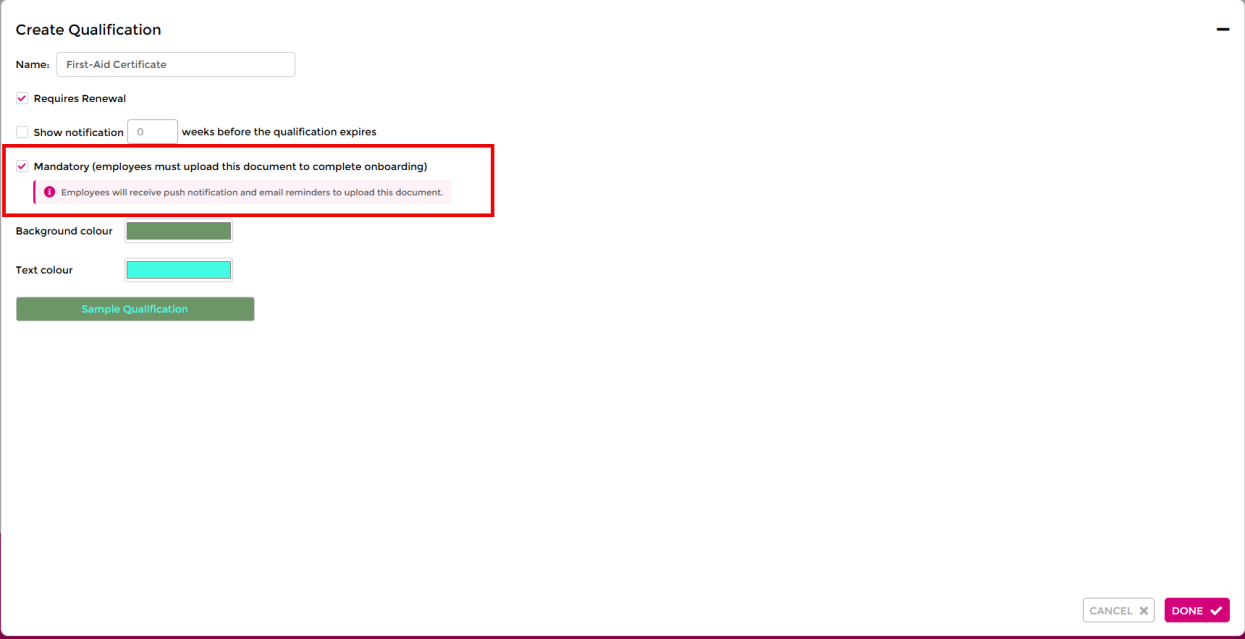
- If your site uses Wageloch HR, enable Mandatory to require this qualification during onboarding.
- Click Done.
INFO
Mandatory is only available on HR-enabled sites. On sites without HR, the checkbox is greyed out and cannot be enabled.
Assign or update qualifications
- Open Settings > Qualifications.
- Locate the staff list for the qualification.
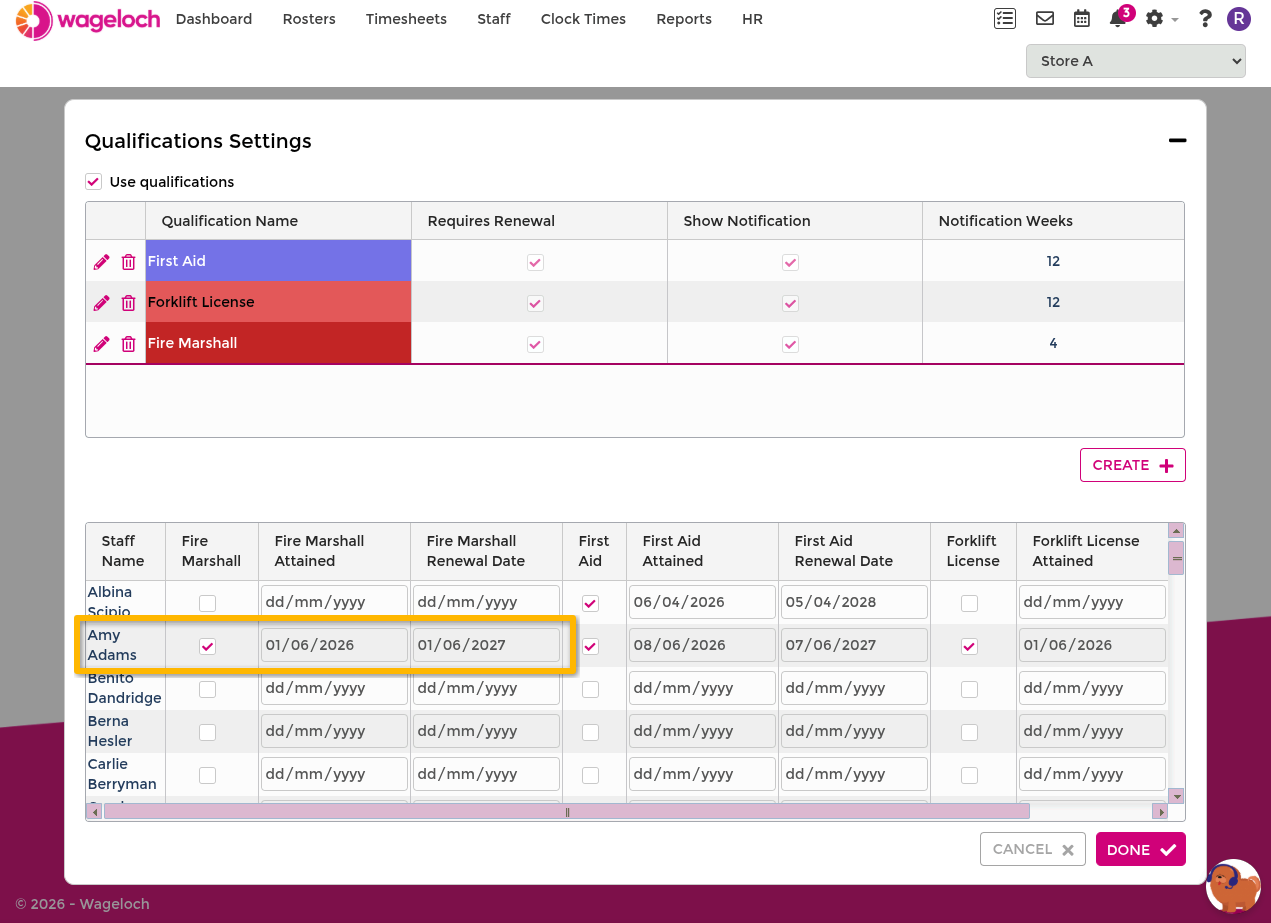
- Tick staff members who hold it, or untick to remove it.
- Enter or update attainment and renewal dates as needed.
- Click Done.
You can do this in bulk for multiple staff members.
Mandatory qualifications and onboarding
If your site uses Wageloch HR, a mandatory qualification assigned to an employee is added to their onboarding setup automatically. You do not need to configure it again in an onboarding template.
- Enable Mandatory when you create or edit the qualification.
- Assign the qualification to the required staff members, as described in Assign or update qualifications above.
- Click Done.
When you assign a mandatory qualification to an employee:
- It's added to the employee's staff card automatically.
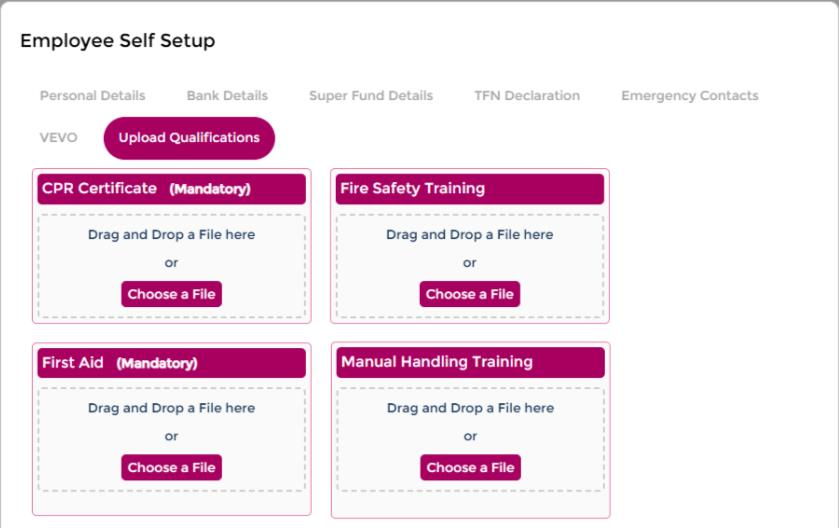
- It's added to the employee's onboarding setup page automatically.
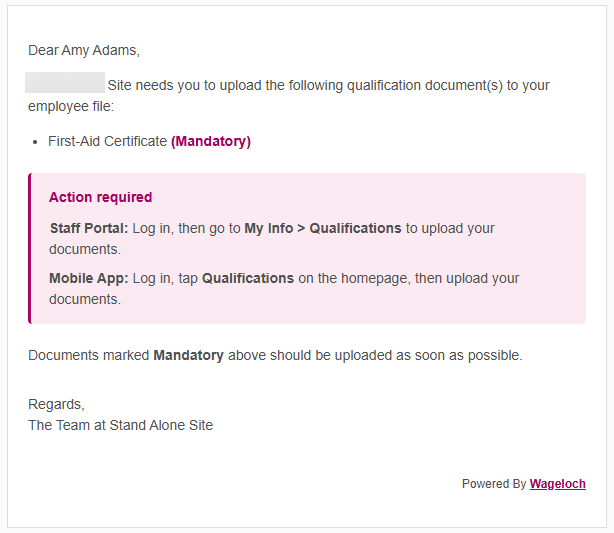
- The employee gets an email and a push notification.
If you change the renewal date on a mandatory qualification later, the employee gets another notification.
IMPORTANT
Employees can't finish onboarding until they upload the document for every mandatory qualification assigned to them.
For what employees see during onboarding, see Completing Onboarding.
Manage qualifications in staff cards
You can also manage qualifications per employee in Staff Information.
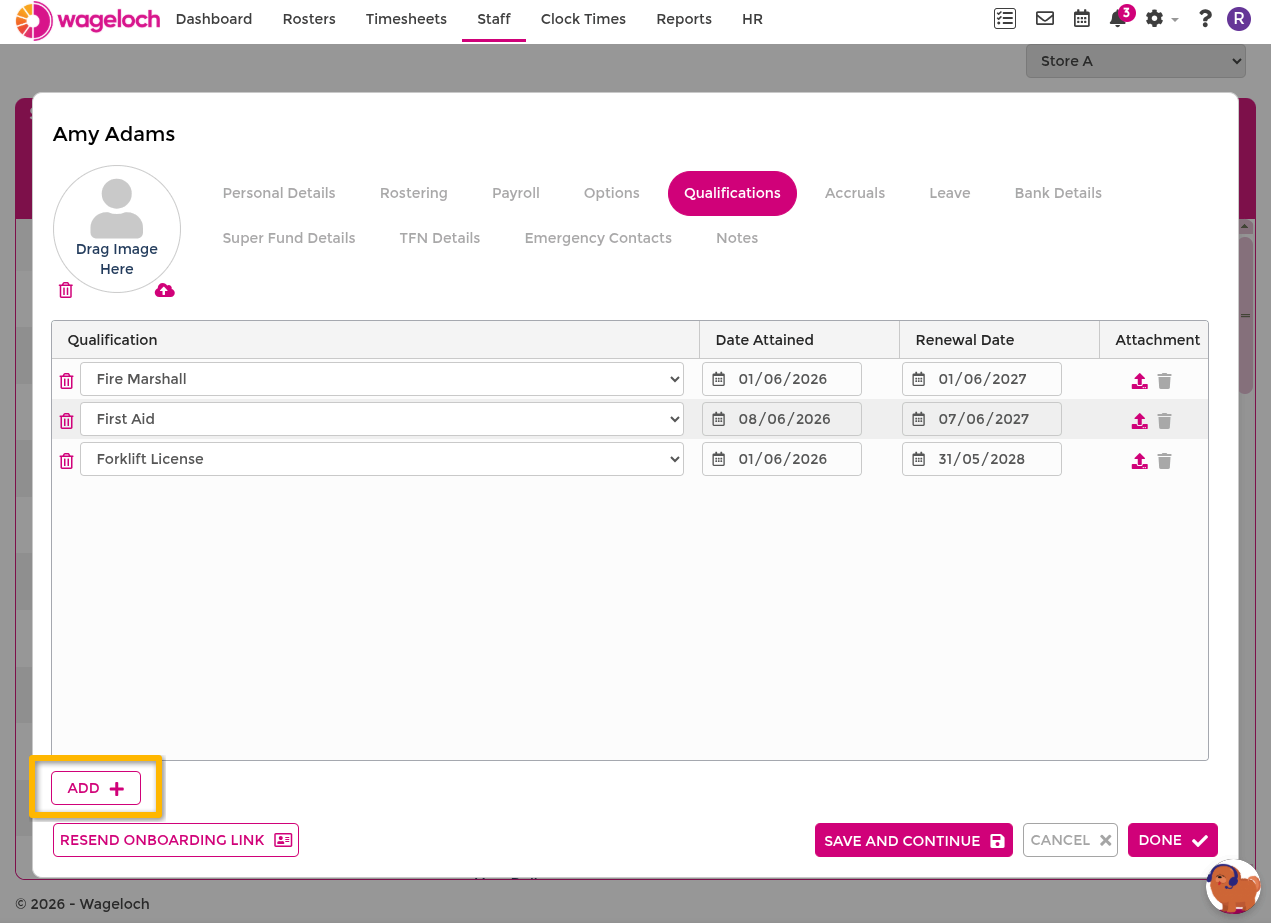
- Open Staff.
- Open the employee's staff card.
- Go to the Qualifications tab.
- Click ADD+ to assign a qualification.
- Enter attainment and renewal dates if required.
- Click Done.
INFO
If you use Wageloch HR, you can link qualification-related documents to staff records.
Use qualifications in rosters
Qualifications can be used as a filter when allocating staff to shifts in Creating Rosters.
- Open Rosters.
- Create or open a roster.
- Add a shift row.
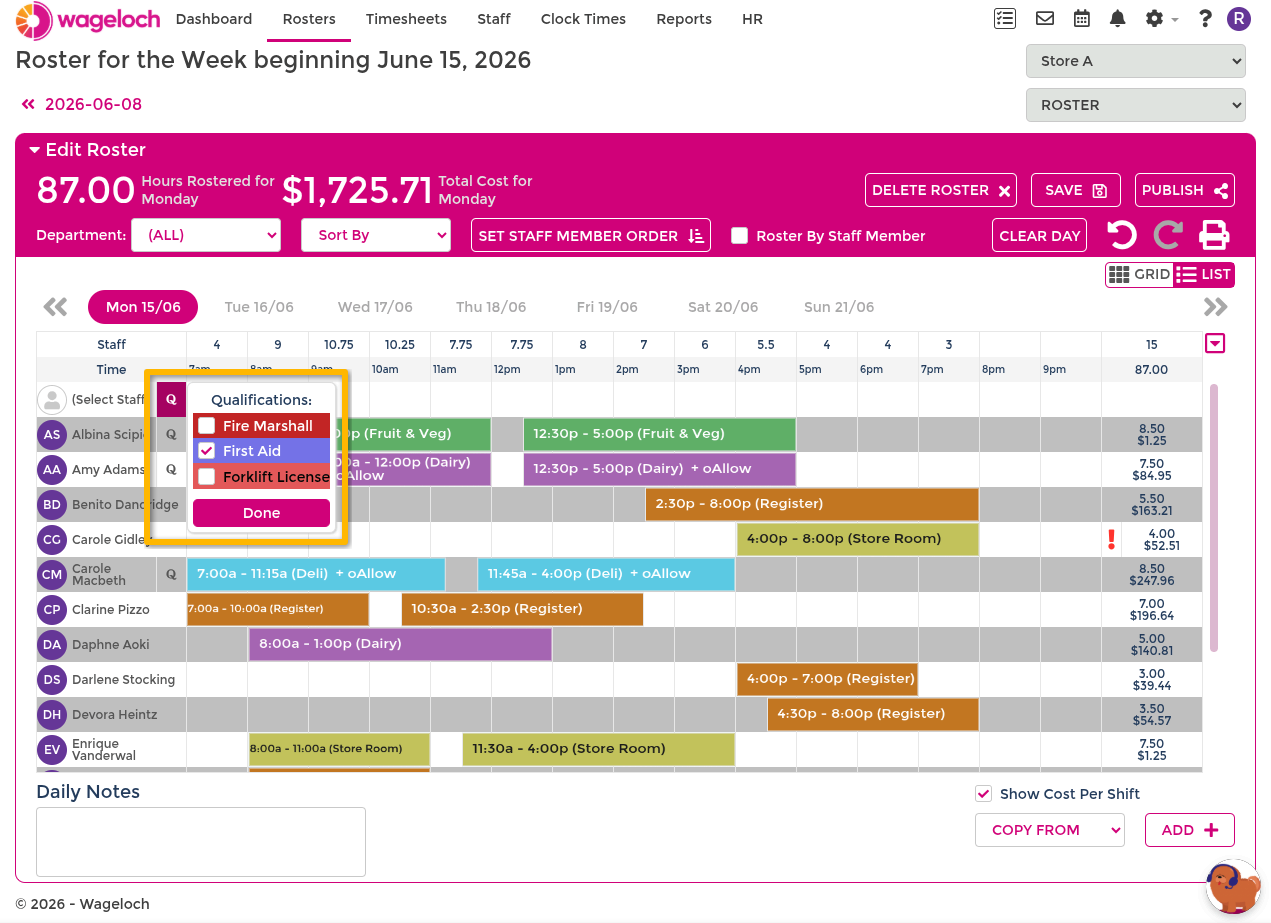
- Click the Q icon beside (Select Staff).
- Select the required qualification and click Done.
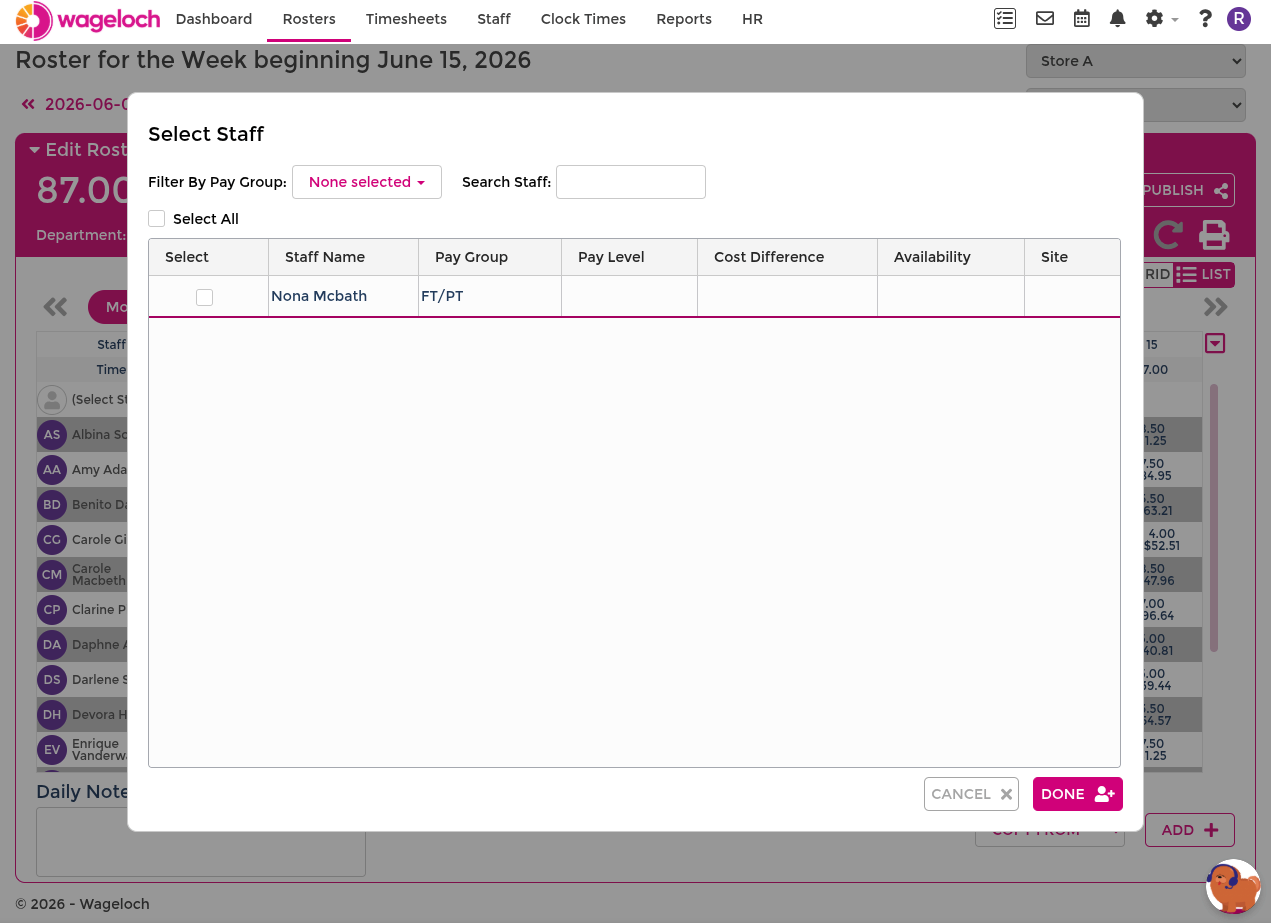
- Open (Select Staff) and choose from the filtered list.
Only staff with that qualification are shown for selection.
Staff Portal: update qualifications
If your site uses the Staff Portal, staff can update their own qualification records. For employee instructions, see Qualifications in the Staff Portal employee guide.
Report: Staff with Qualifications
To review qualification status across staff, use the Staff with Qualifications (C001B) report under HR Reports in Reports.