Completing Onboarding
3 min read
Completing Onboarding and Signing Documents
Onboarding is where you provide the details your employer needs to set up your employment record.
This usually includes personal details, bank and super information, tax details, emergency contacts, and any documents your employer asks you to sign. Completing onboarding correctly helps avoid payroll delays, incorrect contact details, or missing compliance information.
Most employees only need to complete this once at the start of employment, unless asked to update details later.
Access the onboarding form
Your employer will send an onboarding form to your provided email address.
- Open your onboarding email.
- Select Click Here or Setup Employee File.
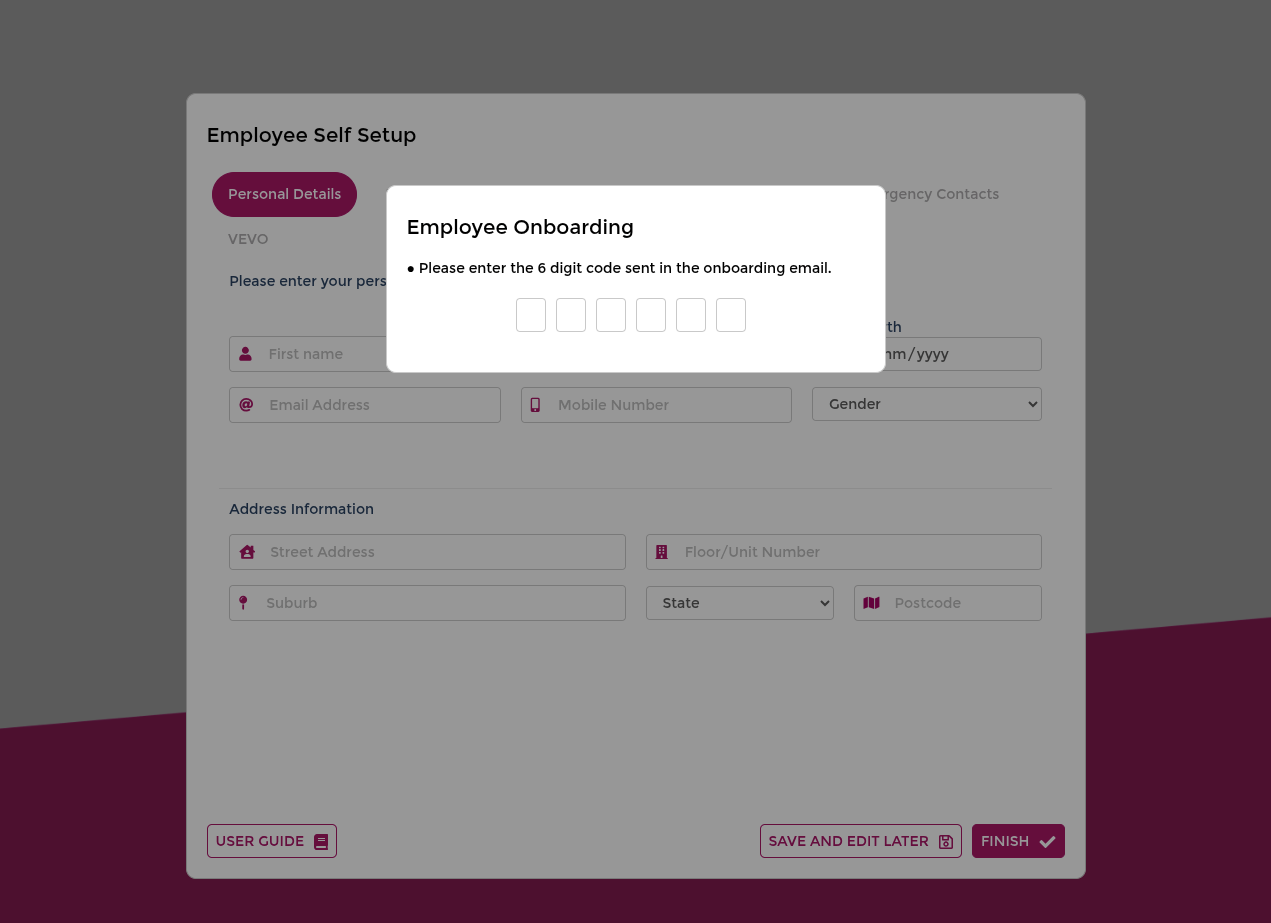
- Enter the 6-digit code from the email.
- Open each tab and complete the sections.
INFO
The onboarding link usually expires after 14 days. Contact your employer if a new link is required.
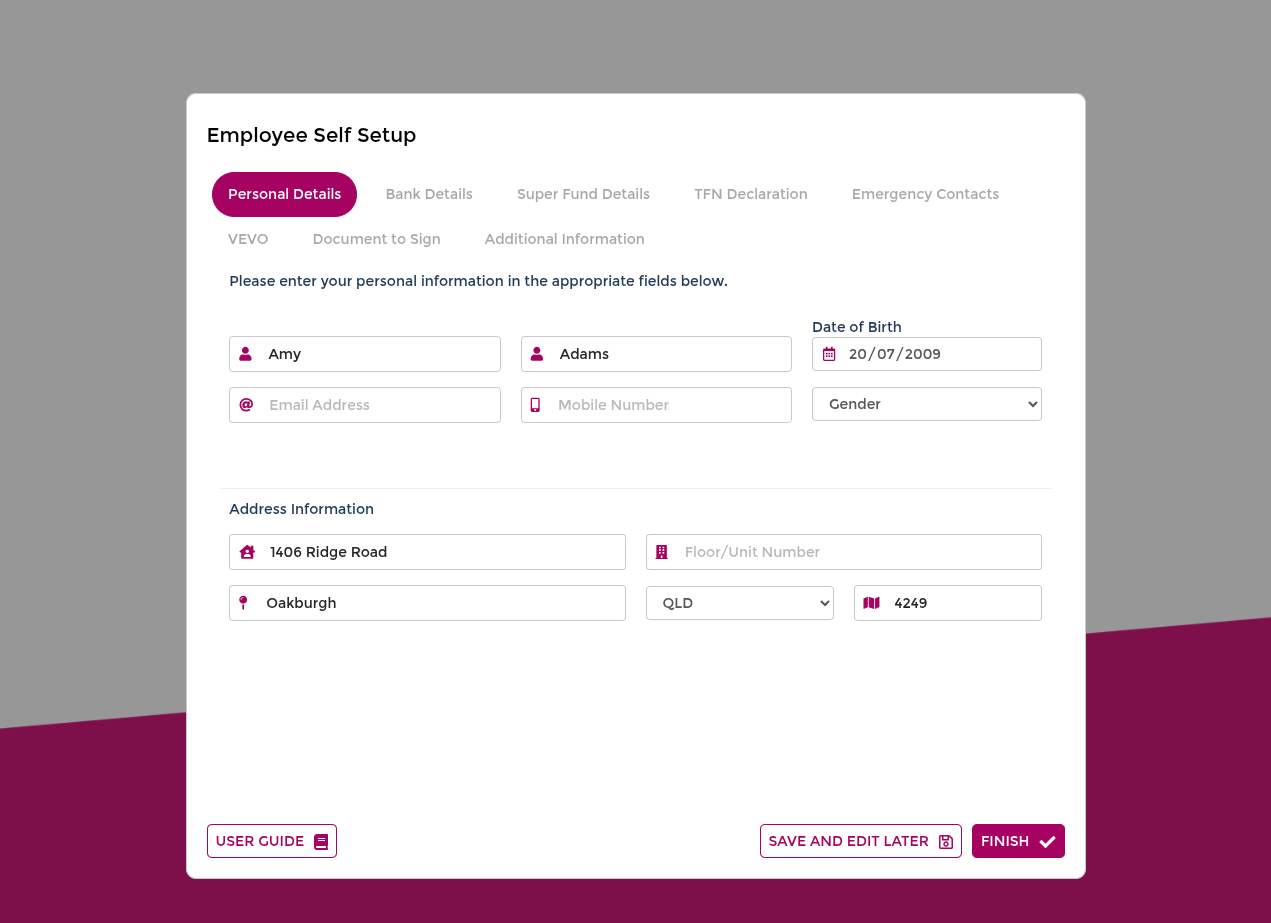
Personal Details
This section confirms your core identity and contact details used by your employer.
Check your basic details such as name and email address, and update anything that is incorrect before moving to the next section.
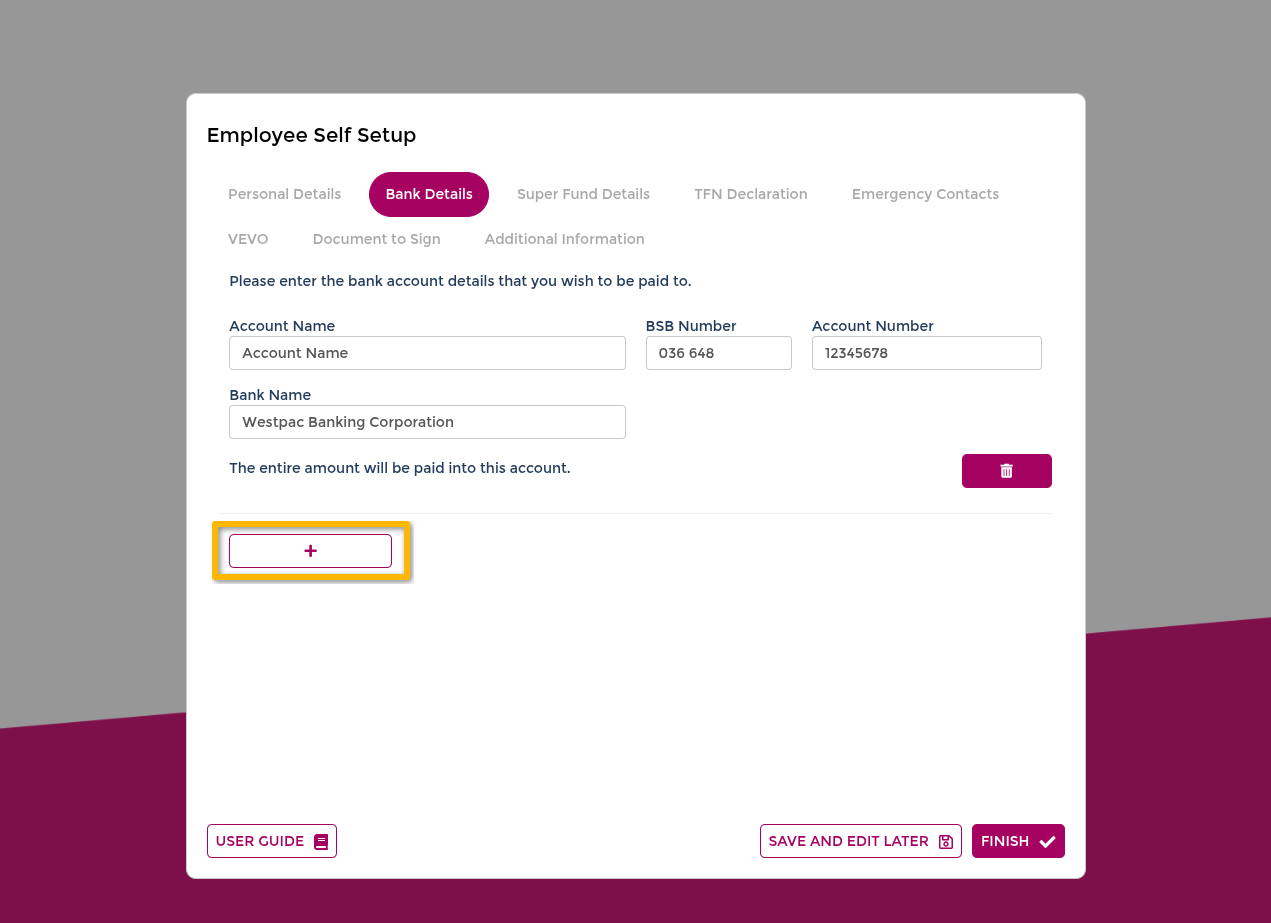
Bank Details
This section tells payroll where your wages should be paid.
If you add multiple accounts, set how much should go to your main account first.
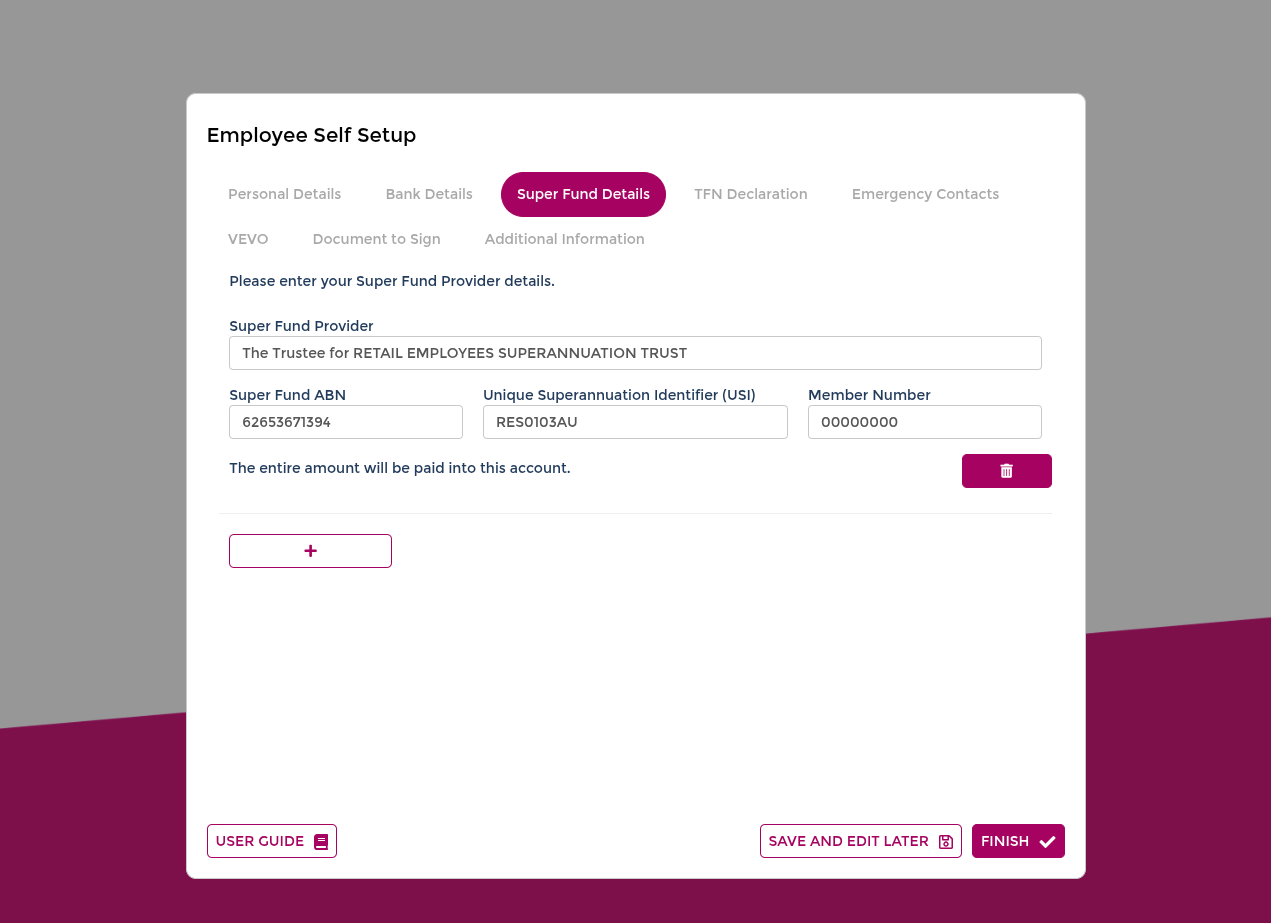
Superannuation
This section records the super fund details your employer needs for contributions.
Add your super fund details for employer contributions.
- For APRA/RSA funds, enter provider name and member number.
- For SMSF, complete all required fund and bank fields.
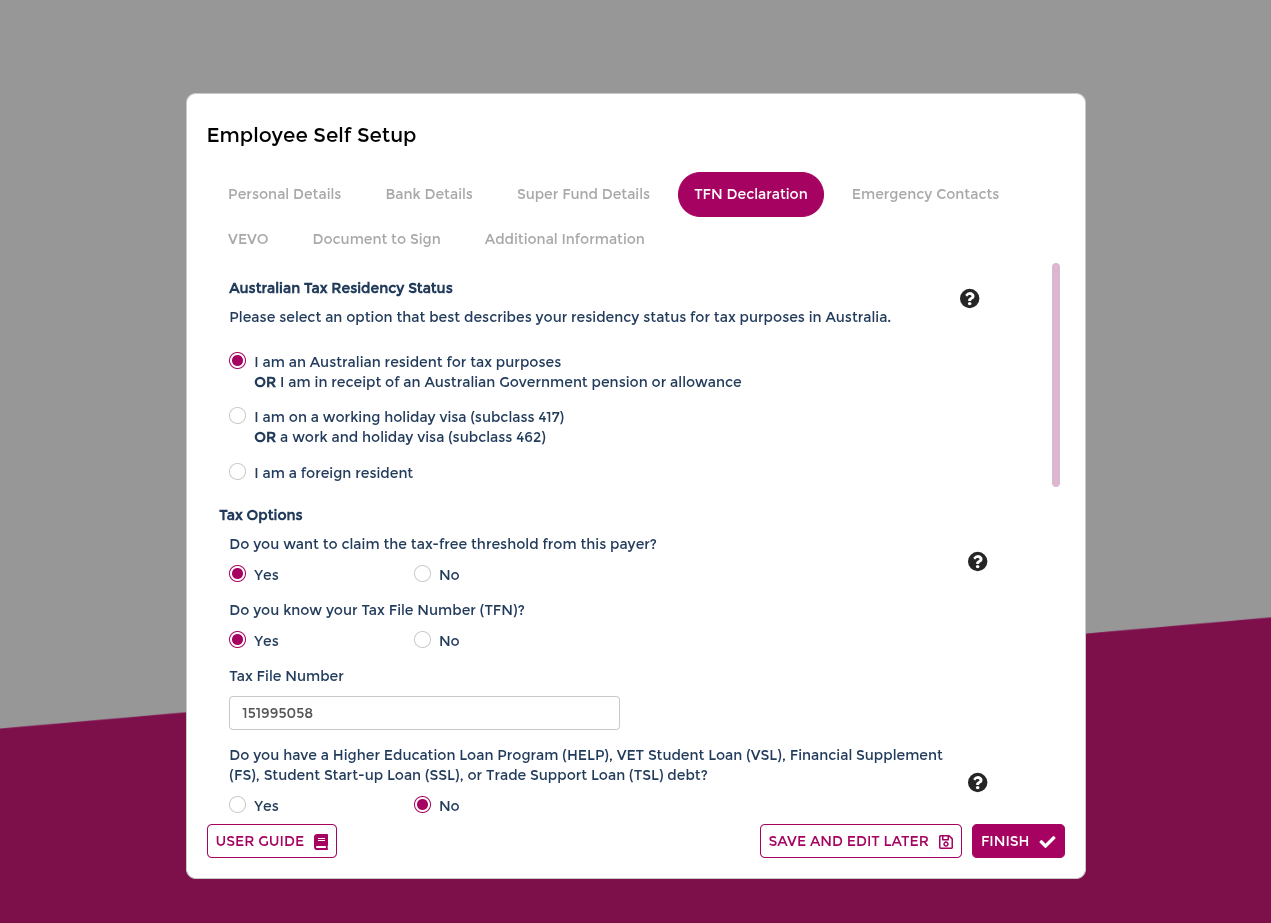
Tax File Declaration
This section collects tax information required for payroll withholding.
If you are unsure what to enter, use the help icon or check guidance from the ATO.
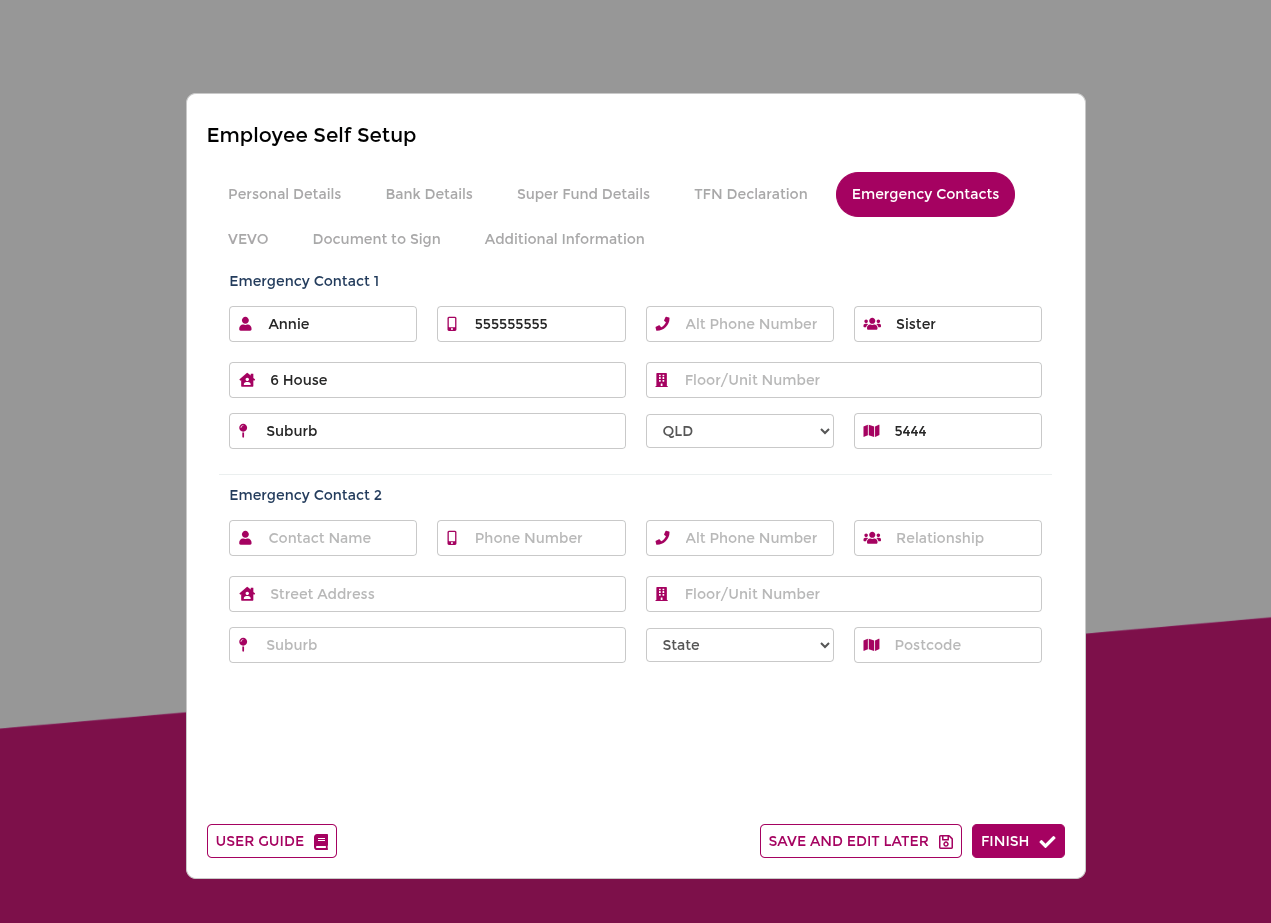
Emergency Contacts
This section records who to contact if there is an emergency at work.
You can add up to two emergency contacts.
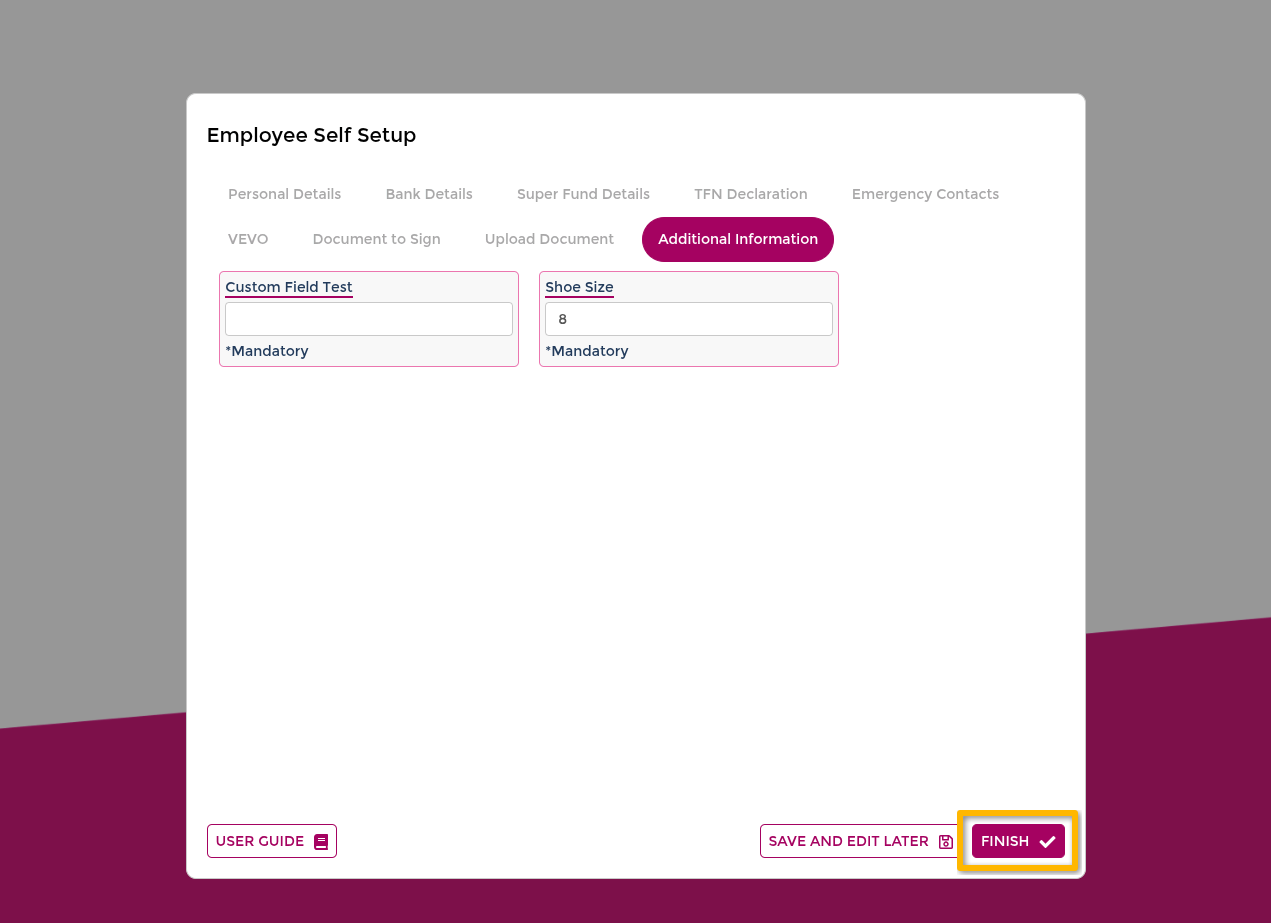
Final check and submission
This step confirms your onboarding form is complete before it is sent to management.
Check each tab is complete, then select Finish.
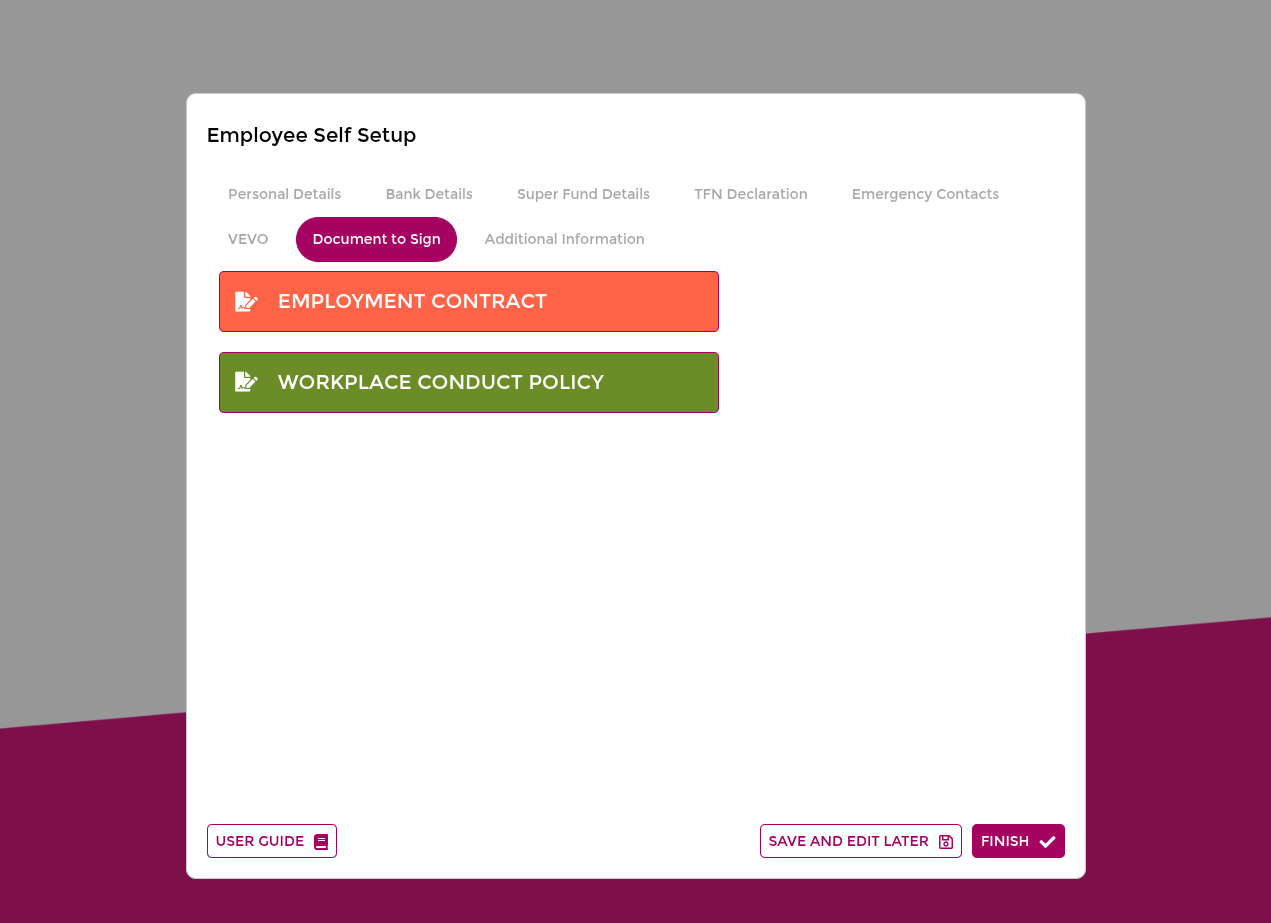
Documents to Sign
This section includes contracts, policies, and other files your employer requires you to read or sign.
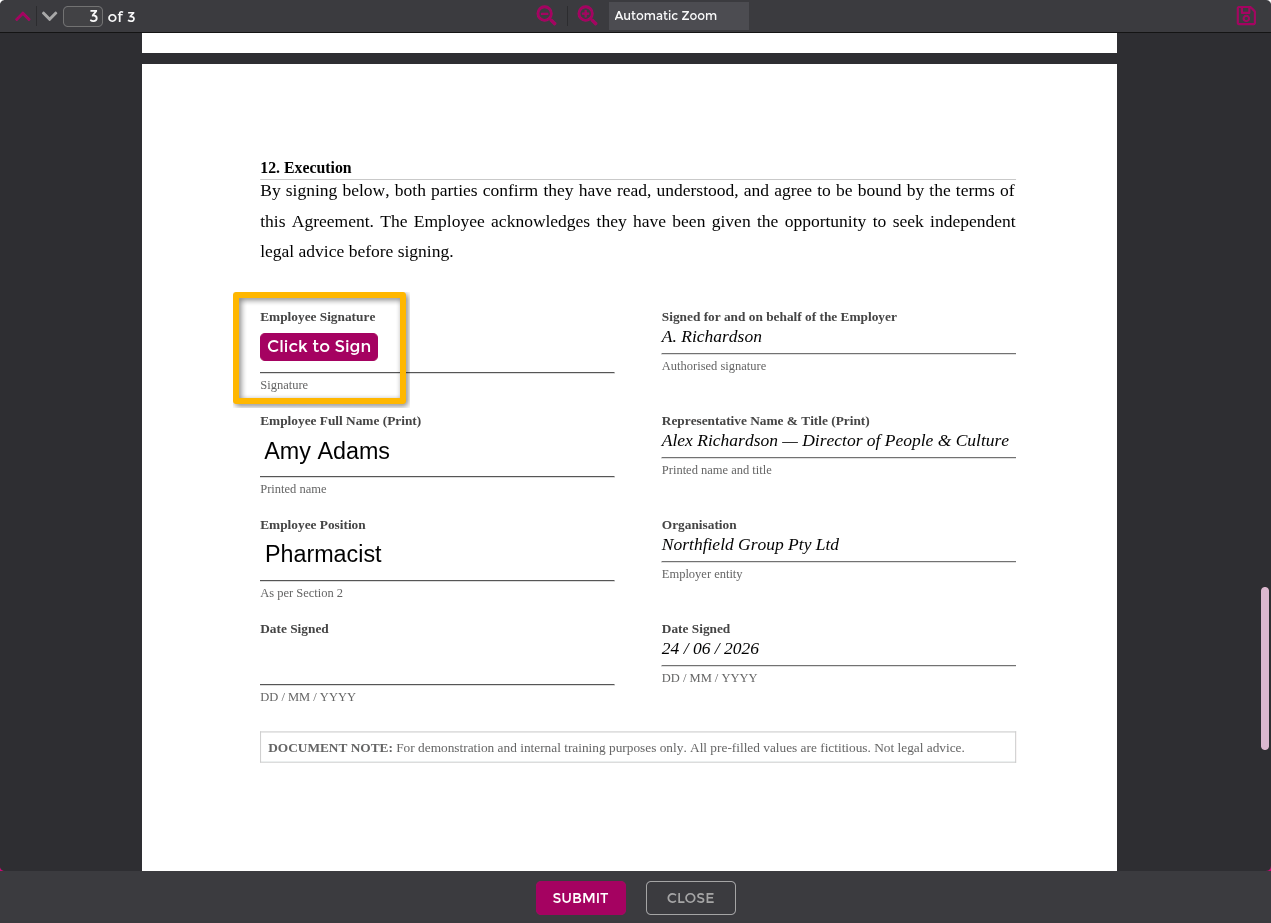
If your employer has provided documents, they appear in Documents to Sign.
- Read the document.
- Select Click to Sign if required.
- Add your signature (draw, type, or upload).
- Select Sign and then Submit.
- Confirm the success message.
INFO
If a document does not require signing, select Mark As Read.
Upload documents
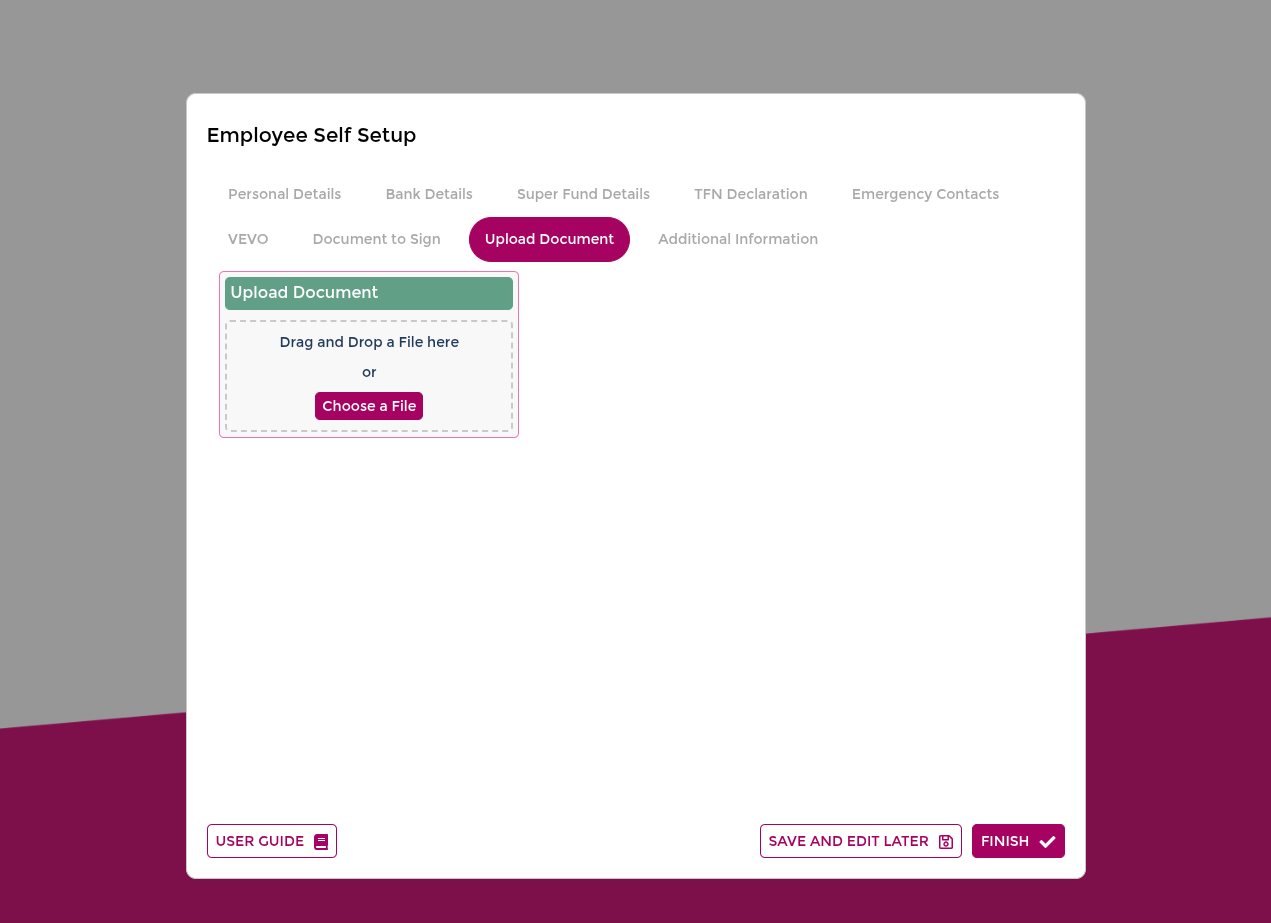
Use this section when your employer asks for supporting files, such as licences or certificates.
If you are asked to upload files (for example licences or certificates):
- Select Choose a File (or drag and drop).
- Select the file from your device.
- Select OK.
- Confirm the file upload completed.
Additional Information
Some employers add custom questions or fields that are specific to their business. These may include extra licence or visa details.
Finish
This final action submits your onboarding package to management for review.
Select Finish to submit the form to management.